Thursday, 28 February 2019

Fix “Apple Mobile Device Service Failed to Start” Error for Good


Users often complain that when they are installing or updating their iTunes to the latest version, they get an error message “Apple mobile device service failed to start” or in some instances, “Windows could not start the Apple Mobile Device service on Local Computer. Error 1053: The service did not respond to the start or control request in a timely fashion.”
If you have been seeing this message, it means you have not been able to install or update your iTunes to the latest version. There are many ways that you can deal with this problem and resolve it permanently.
Part 1: One-Click Fix “Apple Mobile Device Service Failed to Start”
Part 2: Common Ways to Try on Windows 10/8/7 (50% Success Rate)

Restart the Apple Mobile Device (AMD) Service


One fix you can try is restarting the Apple Mobile Device service. Just follow these steps.


Step 1: Click on the “Start” button and type “services.msc” in the search box. This will launch a service window.


Step 2: Look for “Apple Mobile Device Service” and right-click on it, then choose “Properties”.


Step 3: You will see the status of the service. If it is running, click “Stop” then “Start”. If it is not running, click “Start”.


Step 4: If you received an error message telling you the service cannot be started, check that the “Startup Type” is set to “Automatic” then click “Apply”.


Step 5: Restart your PC then try reinstalling iTunes.
2 Ways to Reinstall All iTunes Components


Another fix you can try is to uninstall iTunes and all related components on your PC. There are two ways you can do this: either the manual or automatic way. Of course, doing it manually means you have to spend quite a bit of time tinkering with your PC.
Manual Way:


Step 1: Go to “Control Panel > Programs and Features”.


Step 2: Uninstall iTunes and related components in the following order:


iTunes


Apple Software Update


Apple Mobile Device Support


Bonjour


Apple Application Support (32-bit)


Apple Application Support (64-bit)


Step 3: Manually delete the following folders from your pc:


C:\Program Files\iTunes\


C:\Program Files (x86)\iTunes\


C:\Program Files\Common Files\Apple\


C:\Program Files (x86)\Common Files\Apple\


Step 4: Restart your PC and reinstall iTunes


Note: Don’t uninstall the software in a different order or just uninstall some of them. Or it would cause unintended expects, or even corrupt your computer. So do it very carefully or use the automatic way to avoid the terrible risk.

How to Manually Uninstall iTunes and Apple Related Software 2019


How to Manually Uninstall iTunes and Apple Related Software

Below are the manual steps to uninstall iTunes completely and other Apple software components:

Step 1: Go to “Control Panel > Programs and Features” on your Windows 10. All your PC programs will be shown there.
Also Read:Windows Media Player Won’t Play AVI Troubleshooting
Also Read:Top 10 Best Football Live Streaming Sites for You to Watch Soccer Live on TV 2019
Also Read:10 Best Party Planner Apps for your iPhone and iPad in 2019
Also Read:Best Inventory Management Apps for iPhone and iPad in 2019Also Read:How to Permanently Delete Photos and Videos from Samsung Mobile Phone

Step 2: Type “Apple” into the search bar and enter. This filters all the software related to Apple. You would see 6 or 5 programs there.


Step 3: Right click on each program and select Uninstall. You should do the uninstall following the order below.


iTunes


Apple Software Updates


Apple Mobile Device Support


Bonjour


Apple Application Support 32-bit


Apple Application Support 64-bit

Note If the user uninstalls these components in a different order or uninstalls only a few components, then it may have unplanned effects.

The users need not to worry about the songs they have purchased from iTunes store or imported from the CD. They will be saved in the “My Music Folder” even if you remove the iTunes completely. However, it is advisable to take the Backup of the iTunes library. The users can also do a backup of the iTunes by copying the library to external hard drive.

Moreover, the removal and reinstalling of the iTunes may take a large amount of time to complete the process, but it solely depends on the performance of your PC device.
How to Verify iTunes is Completely Uninstalled

Note: If you use the iMyFone TunesFix iTunes uninstall tool, you don’t need to do the extract verification. That’s because its full uninstall feature also does the verification and completely delete left files during the uninstall process.

Mostly, the removal of iTunes and its related components from the Control Panel will remove all the supporting files. However, in few cases, some files may be left behind so the user needs to confirm the removal of all the folders through:


C:\Program Files\Bonjour


C:\Program Files\Common Files\Apple\ (The user needs to restart the computer to remove this folder as the computer system may keep the user away from removing this folder)


C:\Program Files\iTunes\


C:\Program Files\iPod\


C:\Program Files\QuickTime\


C:\Windows\System 32\QuickTime

C:\Windows\System 32\QuickTimeVR

In case, the user has 64-bit version of the Windows then folders need to remove too:


C:\Program Files (x86)\Bonjour


C:\Program Files (x86)\Common Files\Apple\


C:\Program Files (x86)\iTunes\


C:\Program Files (x86)\iPod\


C:\Program Files (x86)\QuickTime\


C:\Windows\SysWOW64\QuickTime

C:\Windows\SysWOW64\QuickTimeVR Sponsor ads:

Gihosoft Free iPhone Data Recovery:https://www.gihosoft.com/iphone-data-recovery-free.html

Gihosoft iPhone Data Recovery Free

Free iPhone Data Recovery Software for Windows/Mac

Recover up to 12+ types of files, including contacts, SMS, photos, WhatsApp, Viber, notes, etc.

Restore lost data from iOS devices directly or from iTunes and iCloud backup

Recover iPhone data lost due to iOS upgrade/jailbreak, accidental deletion, device lost or broken

Support all the latest iPhone, iPad and iPod Touch

Both Free and Pro version.

If you lost data after you updated to a new iPhone, you can always use Gihosoft iPhone Data Recovery to get the data back from the old iPhone or backup.You may also like: iphonerecovery.com

If you use android phones, please choose Gihosoft Android Data Recovery.

With Gihosoft Android Data Recovery, no longer afraid of data loss!

Must read:Youtube video downloader for pc

Gihosoft RePicvid Free Photo Recovery Software provides a free photo recovery software for windows to help users recover the deleted or lost photo for free.

Jihosoft Android Data Recovery: the best Android Data Recovery software for Windows and Mac to recover deleted contacts, messages, photos, videos, WhatsApp and etc from Android devices.Tips:How to transfer messages from iPhone to iPhone


jihosoft Free iPhone Data Recovery

Factory Restore iPhone 8 on iOS 12 via iPhone Setting


Factory Restore iPhone 8 on iOS 12 via iPhone Setting

iPhone 8 iOS 12 can be reverted back to the way it was when it first came out of the box (i.e. wipe all contents, settings and personal information from the device) through iPhone Settings app. This method is recommended when you have your iPhone in good shape and form with all passcodes and IDs intact.

Sponsor ads:9 Best Apple Watch Music Apps to Enjoy Music Anywhere

Sponsor ads:5 Best Kodi Alternatives You Should Check Out in 2019
Hence, if you don’t have your iPhone passcode, then this method of factory resetting an iPhone 8 is not for you. Please, make sure that you have a complete backup of your iPhone on iTunes or iCloud before following the steps about how to factory reset iPhone 8.

Here are the steps to perform a factory reset of your iPhone 8 through the iOS Setting app.
Also Read: rarbg proxy

Go to your iPhone 8 Settings app and click on it to launch it.


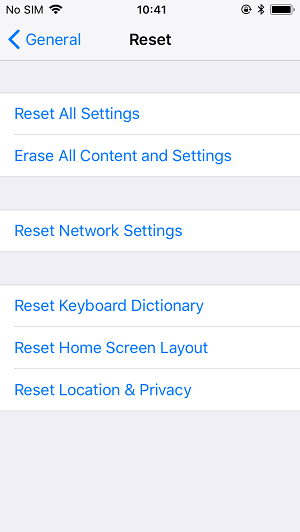
Tap “General > Reset > Erase All Contents and Settings”.


iPhone will ask you to input your Apple passcode, then the erasing process will begin. After erasing your iPhone to factory settings, you can choose either to restore your iPhone data from an iCloud backup or set up your iPhone 8 as a new device.


How to Reset iPhone 8 by iTunes

You can easily factory reset your iPhone 8 iOS 12 with iTunes instead of using the second method above. Here is some situation when iTunes recovery mode method of factory reset is better than resetting via settings:


Recovery mode works when iTunes cannot recognize your iPhone 8 or says that your iPhone 8 is in recovery mode.


If your Screen is stuck on Apple logo with no progress bar.


If iPhone 8 is saying “connect to iTunes”.

Here are the steps to factory reset your iPhone 8/8 Plus/X via iTunes:


Connect your iPhone 8, 8 Plus, or X to your computer via USB cable.


Force restarts your iPhone with these steps: Press and quickly release the Volume Up button > Press and quickly release the Volume Down button > Press and hold the side button until connect to iTunes screen appears.


Choose “Update” and iTunes will download the software for your device. Set up your device at the end.


Sponsor ads:

Gihosoft Free iPhone Data Recovery:https://www.gihosoft.com/iphone-data-recovery-free.html

Gihosoft iPhone Data Recovery Free

Free iPhone Data Recovery Software for Windows/Mac

Recover up to 12+ types of files, including contacts, SMS, photos, WhatsApp, Viber, notes, etc.

Restore lost data from iOS devices directly or from iTunes and iCloud backup

Recover iPhone data lost due to iOS upgrade/jailbreak, accidental deletion, device lost or broken jihosoft Free iPhone Data Recovery

Support all the latest iPhone, iPad and iPod Touch

Both Free and Pro version.

If you lost data after you updated to a new iPhone, you can always use Gihosoft iPhone Data Recovery to get the data back from the old iPhone or backup.You may also like: iphonerecovery.com

If you use android phones, please choose Gihosoft Android Data Recovery.

With Gihosoft Android Data Recovery, no longer afraid of data loss!

Must read:Youtube video downloader for pc

Gihosoft RePicvid Free Photo Recovery Software provides a free photo recovery software for windows to help users recover the deleted or lost photo for free.

Jihosoft Android Data Recovery: the best Android Data Recovery software for Windows and Mac to recover deleted contacts, messages, photos, videos, WhatsApp and etc from Android devices.Tips:How to transfer messages from iPhone to iPhone


Tuesday, 26 February 2019

Error 4013/4014 Occurred during Restoring iPhone, How to Fix?

Error 4013/4014 Occurred during Restoring iPhone, How to Fix?

Apple is flying high in the technology industry for a reason – they produce magnificent products which consumers seem to love every single year. Whether it’s an enhancement in the design, or additional, innovative features, they are always raising the bar which their competitors need to aim for. However, Apple products do still experience problems from time to time.

One of those is an issue when trying to restore an iPhone. The process should be a relatively simple one, as all you need to do is connect your iPhone to a computer via a cable, and iTunes should do the rest. But, for some people, the prompt "The iPhone could not be restored. An unknown error occurred (4013)/(4014)" is displayed, either due to a faulty cable, or a poor Wi-Fi signal.


So, we're going to discuss some of the solutions to this all too common problem.


1. Before Start, Try Apple's Guide


2. Make sure that Your Wi-Fi Works Good


3. Change the U2 Charging IC


4. Put Your Device into Recovery Mode


5. Fix Error Code 4013/4014 by Repair Tool
Solution 1: Before Start, Try Apple's Guide

Before you attempt any diagnostics, you should always refer to the official Apple help guide first if you see error 4013, or 4014 when you restore your iOS device. They'll explain to you exactly what they want you to try.

If that doesn't work, then you can start to explore other solutions.
Solution 2: Make Sure that Your Wi-Fi Works Good

One of the main causes of the error is a poor Wi-Fi signal. Now, you can either follow the Apple guide we talked above, which has a section about your Wi-Fi. Alternatively, you can just reset your Wi-Fi yourself, if you know how, as that usually allows your internet to regain a strong signal.

If you don't know how to reset your Wi-Fi network, well, it is pretty easy. Just disconnect Wi-Fi on your iPhone and computer. Then wait a little while to reconnect them to the network. Or, you can connect your iPhone and computer to another Wi-Fi network if you can.


Solution 3: Change the U2 Charging IC

This is a much more complicated venture, and does require some knowledge. So, if you are going to try this, then we'd suggest searching for a detailed tutorial on YouTube, so you can watch exactly how to do it.

If you are not sure that you can handle this, just don't try this method in case you damage any component but you can read on to find other solutions.
Solution 4: Put Your Device into Recovery Mode

You can also try this Recovery Mode trick which works for lots of iOS issues.

Step 1. Hold the Home button and connect your iPhone to iTunes on your computer.

Step 2. Release Home button and then you'll see the 'Connect to iTunes' logo on your iPhone – it is in Recovery Mode now.

Sponsor ads:Fix “Please insert a disk into removable disk” without Losing Data

Sponsor ads:How to Duplicate Snapchat on iPhone in 2019 (iOS 12 Supported)


Step 3. Follow the iTunes' prompt to restore your iPhone. Once you see the loading symbol on your iPhone screen, take out the cable straight away.

Step 4. Wait approximately 10 seconds, and then when you reinsert the cable, the restoration process should begin.


You may also need to know how to do if iPhone won't go into Recovery Mode.
Solution 5: Fix Error Code 4013/4014 by Repair Tool

If you're still having no luck with the solutions recommended above, then an effective program, such as iMyFone iOS System Recoverywill help. It works by immersing the latest iOS in your iPhone, and clearing the error code 4013/4014. You're probably wondering how to use it? Follow the steps below. Of course, before you start, you need to download and install the secure software on your computer first. Sponsor ads:Share YouTube Video at Specific Time on Mobile and PCMust Read:If you lost data after you updated to a new iPhone, you can always use Gihosoft iPhone Data Recovery to get the data back from the old iPhone or backup.

Gihosoft Free iPhone Data Recovery:iphonerecovery.com

If you use android phones, please choose Gihosoft Android Data Recovery

Wednesday, 20 February 2019

Factory Reset the iPhone Without a Passcode Via iTunes


2019 Factory Reset the iPhone Without a Passcode Via iTunes

Please note that this solution will only work if you had synced the iPhone with iTunes in the past. There is a chance that iTunes could still remember your passcode and you may not have to re-enter it.

Step 1: Connect the device to your computer using USB cables and launch iTunes. Begin by backing up the data on the device because a factory reset will remove all data.

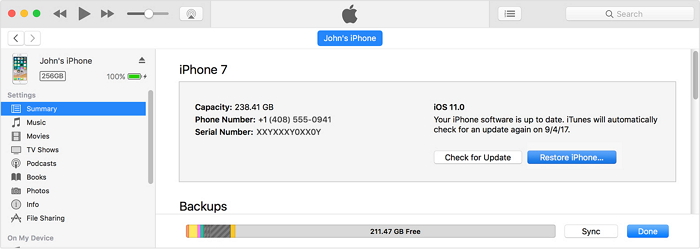
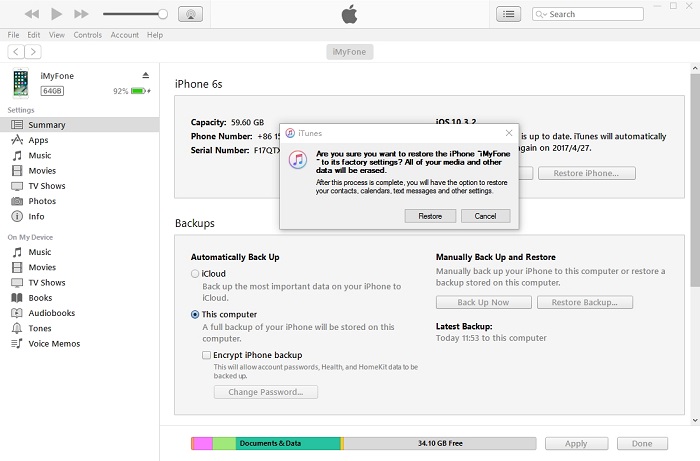
Step 2: Click on “Restore iPhone” and then click “Restore”.


Step 3: Click Restore again to confirm the process. This will let iTunes erase all your content and settings on your device.


Step 3: Click on “Next” in the software update window and then accept Apple Terms and Conditions by clicking on “Agree.”

Step 4: Now all you have to do is wait while iTunes downloads the iOS software and restores the device.

Sponsor ads:

Gihosoft Free iPhone Data Recovery:https://www.gihosoft.com/iphone-data-recovery-free.html

Gihosoft iPhone Data Recovery Free

Free iPhone Data Recovery Software for Windows/Mac

Recover up to 12+ types of files, including contacts, SMS, photos, WhatsApp, Viber, notes, etc.

Restore lost data from iOS devices directly or from iTunes and iCloud backup

Recover iPhone data lost due to iOS upgrade/jailbreak, accidental deletion, device lost or broken

Support all the latest iPhone, iPad and iPod Touch

Both Free and Pro version.

If you lost data after you updated to a new iPhone, you can always use Gihosoft iPhone Data Recovery to get the data back from the old iPhone or backup.You may also like: iphonerecovery.com

If you use android phones, please choose Gihosoft Android Data Recovery.

With Gihosoft Android Data Recovery, no longer afraid of data loss!

Must read:Youtube video downloader for pc

Gihosoft RePicvid Free Photo Recovery Software provides a free photo recovery software for windows to help users recover the deleted or lost photo for free.

Jihosoft Android Data Recovery: the best Android Data Recovery software for Windows and Mac to recover deleted contacts, messages, photos, videos, WhatsApp and etc from Android devices.Tips:How to transfer messages from iPhone to iPhone

jihosoft Free iPhone Data Recovery

Tuesday, 19 February 2019

Hottest iOS 12 Reviews!


A couple of weeks ago, the Apple company showcased its first developer beta for the version 12 alongside mind blowing features.
Most Attractive New Changes in iOS 12


Within the iOS 12 beta, cricket scores now have the Siri support from the Indian premier league and ICC.


Also, a 3D touch shortcut has been added for the weather app that will keep users informed with the timely forecast, there are also the CarPlay refinements and minor Maps included.


The newly added Podcasts widget will be advantageous to Idevice users especially ones with iPad and iPhone, with Safari bringing in a reduced motion setting in the Web apps.


Hot Reviews about iOS 12 New Changes
1For AirPods

My AirPods feature now give iPhone users the opportunity to call upon the wireless buds to play a sound. Although AirPods are not GPS and Wi-Fi enabled, it means you can only catch the signal if they're within range (Bluetooth range of about 4-5 meters). The sound at least would be enough to hear one of the AirPods if it's stuck within the sofa cushions for example. You'll have to retrace steps in the case where they're lost outside the confines of your home, although the Bluetooth connection can still come up.

Just of recent, the company invented an app to help early adopters look for their lost AirPods, simply by putting users in the way toward virtual game of warmer, colder.


2For Apple ID setting

The Apple ID setting section now has a new security section, and now users have the chance to reply to reviews. Although only registered apple developers are entitled for the update now, but judging with the recent development, those that have signed up for the beta program may also get it very soon.


3For The Developer Community

Upcoming betas however will add in more features too. For instance, we didn't notice the rumored dark mode that was stated to come with the first release, but with the recent release of the first 10.3 beta for users and developers, Apple has added two other changes which is of high importance to the developer community and iOS users. There'll be a developer API for users to regulate how an app can request users to write a review or rate an app on the App store, and now they (developers) will have the chance to directly respond to reviews dropped by customers on both the Mac app store and IOS.


4For User rating or review

Still with the iOS 12, developers can now request for rating or review from users without sending them right back to the App store while the particular app is still in use, with the help of an API. A lot of users at this point have been asking series of question concerning what the feature would look like- maybe there would be an alert pop up, or if a new in-app page will pop up to write a review. Apple has since then cleared the air that developers will be able to deep-link Idevice users to the product page and more importantly, to a new page where reviews can be dropped. Developers and users have a lot to adjust to regarding the noticeable change, because now with a native API, developers will quit adopting custom implementations that might affect the user experience negatively, while the users on the flip side now can outrightly disable reviews at a system-wide level and in-app ratings for apps that make use of the API.


5 For Developers

Another big improvement that have been added to the app store reviews is that developers now can answer to reviews in a way that is available for everyone to see. This seems like a bold step for Apple listening and catching up to the developer community; one which the Google play store for android apps have been able to adopt for quite some time now. It'll be amazing to see how developers will take in the upcoming in-app review functionality. Finally, it now looks like Apple will allow developers respond to customers reviews on both its Mac App store and general App store. Regarding the latest documentation for the 10.3, app makers can now respond to reviews that are publicly posted- and also request for reviews in specific ways.


Sponsor ads:Offline Music Apps for iPhone

Must Read:If you lost data after you updated to a new iPhone, you can always use Gihosoft iPhone Data Recovery to get the data back from the old iPhone or backup.

Gihosoft Free iPhone Data Recovery:iphonerecovery.com


If you use android phones, please choose Gihosoft Android Data Recovery

Monday, 18 February 2019

Can I Transfer Files From iPad to PC Using iTunes?


Can I Transfer Files From iPad to PC Using iTunes?

This is not the recommended method, for obvious reasons, but you can of course use iTunes to transfer some files. Follow these steps to do so:Also Read: rarbg proxy


Open up iTunes.


Connect your iPad.


Click on your device when it shows up in the application.


Select the file that you wish to transfer.


Check “Sync XX” and select some different choice as required.


Hit “Apply” button at the bottom.


It’s really not that complicated, but you will find yourself restricted in terms of which files you can transfer. Can I transfer files from iPad to PC selectively? No. In addition, you’ll have to use iTunes of course, which runs slow and includes all sorts of functions that you don’t really need if all you want to do is transfer files.

To make the experience easier, just use TunesMate.Sponsor ads:Free Antivirus for iPhone

Must Read:If you lost data after you updated to a new iPhone, you can always use Gihosoft iPhone Data Recovery to get the data back from the old iPhone or backup.

Gihosoft Free iPhone Data Recovery:iphonerecovery.com

If you use android phones, please choose Gihosoft Android Data Recovery

Thursday, 14 February 2019

Common Issues with TinyUmbrella and How to Fix Them


Common Issues with TinyUmbrella and How to Fix Them

The following are just some of the problem TinyUmbrella users face and how you can fix them.
1 Unable to Validate Libraries

This happens a lot. The program doesn’t load or displays the “Unable to Validate Reticulating Splines” message. If this is what you encountered, here’s what you can do to fix it.

Step 1: Open Windows Explorer and navigate to C: Users/Your User Name/. shsh/. cache/

Step 2: Delete the Lib-Win.jar file you find there and then download a new Lib-Win.jar file.

Step 3: Once the file has been downloaded, place it in the same place it was previously (C: Users/Your User Name/. shsh/. cache/) When you open TinyUmbrella, it should be able to work now.
2 TinyUmbrella Won’t Open

If you try to open TinyUmbrella and it just won’t launch, here’s what you can do to fix it.

Step 1: Open the registry editor and click “Start” and type “regedit.” Press enter.

Step 2: Go to HKEY_CURRENT_USER\Software\JavaSoft\Prefs\com\semaphore and then double-click on "/S/A/V/E_/D/I/R/E/C/T/O/R/Y.

Step 3: Enter the path of your SHSH files (if you don’t know it, delete the entry) and the program should launch just fine.
3 TinyUmbrella Won’t Work on Windows

If TinyUmbrella fails to work on your Windows system, here’s what you can do.

Disable your anti-virus and Windows Defender and then make sure that you have installed the latest version of iTunes and Java on your Windows system. You should also run the program in compatibility mode.

Sponsor ads:

Gihosoft Free iPhone Data Recovery:iphonerecovery.com

Free iPhone Data Recovery Software for Windows/Mac

Recover up to 12+ types of files, including contacts, SMS, photos, WhatsApp, Viber, notes, etc.

Restore lost data from iOS devices directly or from iTunes and iCloud backup

Recover iPhone data lost due to iOS upgrade/jailbreak, accidental deletion, device lost or broken

Support all the latest iPhone, iPad and iPod Touch

Both Free and Pro version.

If you lost data after you updated to a new iPhone, you can always use Gihosoft iPhone Data Recovery to get the data back from the old iPhone or backup.

Top 10 Best FRP Bypass Tools to Bypass Google Account on Android Device 2019

Worth reading:download youtube 1080p

If you use android phones, please choose Gihosoft Android Data Recovery


Jihosoft Android Data Recovery: the best Android Data Recovery software for Windows and Mac to recover deleted contacts, messages, photos, videos, WhatsApp and etc from Android

iPhone X Heating up While Using? Top 3 Tips & Tricks

There are some users who have reported the iPhone X heating up while in use. The main consequence of this problem is that the device's b...