Monday, 14 October 2019

iPhone X Heating up While Using? Top 3 Tips & Tricks


There are some users who have reported the iPhone X heating up while in use. The main consequence of this problem is that the device's battery gets drained a lot faster. If you are concerned that your device is hot to the touch while you're using it, this article will share with you some of the top ways you can prevent this from happening.
Q 1. Is it Normal for iPhone X to Heat up?
While it is common for the temperature on your device to rise slightly while using it, especially if you are using it for a long time, it is not normal for the device to get too hot.
Abnormal temperature rise should be concerning particularly when the device gets too hot to the touch.
Q 2. Why Does My iPhone Get Really Hot Fast?
There are several reasons why your iPhone X can get too hot.
External causes such as placing the device in direct sunlight or in a closed car where temperatures can rise significantly are some of the most common causes.
Internal factors such as overloaded processor can also cause the device to overheat. Using high-graphic apps or watching HD videos for a long time can significantly task the device's CPU, causing the device to get hot really fast.

Way 2. Restore Your iPhone X in Recovery Mode


Restoring your iPhone X in recovery mode is another effective way to stop the device from overheating. Follow these simple steps to do it.


Step 1: Connect the device to the computer using USB cables and then launch iTunes.


Step 2: As soon as the iTunes detects the device, press and release the volume up button, press and release the volume down button and then press and hold the power button until the Apple logo appears on the screen.


Step 3: When prompted in iTunes, click "Restore iPhone". This will remove all data and settings on the device and reinstall the latest version of iOS.


Way 3. Factory Reset Your iPhone X


Factory resetting the device will eliminate some of the software glitches that could be causing the device to overheat. To reset the iPhone go to Settings > General > Reset > Erase all Contents and Settings and enter your passcode when prompted.


Please note that this solution will erase all the data on the device. Once it is done, set up the device again to see if the problem is gone.Also Read:Locate Your iPhone Using IMEI Number for Free


Also Read:Block Unknown Callers on Your iPhone (iOS 13/12)


Way 4. Force Restart Your iPhone X


A force restart can also help significantly cool down Your iPhone X.


Step 1: Press and quickly release the volume up button.


Step 2: Press and quickly release the volume down button.


Step 3: Press and hold the power button until the Apple logo appears on the screen.


Way 5. Reset All Settings on iPhone X


Resetting all settings on your device can also help remove some of the software glitches that could be causing the issue.


To reset all the settings on your device, go to Settings > General > Reset > Reset All Settings and enter your passcode when prompted.


Way 6. Update iOS Version to the Latest


An update of the iOS system not only brings with it cool new features, but it also a great way to fix some issues with the device.


To update the device, go to Settings > General > Software Update and if an update is available, tap "Download and Install" and then follow the prompts to complete the process


Part 2. 3 Tips to Prevent iPhone X from Heating up While Using


If you would like to prevent the issue from happening again in the near future, here are some of the things you can do.
Tip 1. Turn off Bluetooth and Airdrop


There are some features on your iPhone that when enabled can cause the device to overheat. Two of the most notorious are Bluetooth and Airdrop.


If you are not using Bluetooth or Airdrop, turn them off to ease the strain on your device's CPU and prevent the device from overheating. You can turn them both off in the device's Control Center.


Tip 2. Delete Battery-Consuming Apps from Your iPhone X


While you're at it, you may want to delete some of the larger or high-graphic apps that could be negatively impacting the device's battery life.


If you don't want to delete these apps, make sure that they remain closed when you're not using them and that there aren't other apps running in the background while you are using the app.


Tip 3. Contact Apple Support to Check the Battery


If the problem persists, you may need to contact Apple Support to get them to repair the device's battery. If you are going to take this course, we recommend making an appointment at the nearest Apple Support Center to avoid long waits when you get there.


Conclusion


When you notice that the iPhone X is heating up while in use, the solutions above can come in handy to repair the device and get it to work normally again. Choose a solution that you think will work for your device in your particular situation.


Tips:


Recover Photos, Videos, Contacts, Messages, Notes, Call History & Calendar from iPhone. Recover Lost or Deleted Data from Your iPhone in Just a Few Clicks. Free Download Now. Download Free Trial Now. Do-It-Yourself Software. 3 Million+ Happy Customer.


Also Read:h33t proxy

Tuesday, 10 September 2019

iOS/iPadOS 13 Features That Will Be Added Later This Fall


Apple is expected to launch the iOS 13 and iPad OS 13 on September 30th. The latest upgrades come with a slew of new features. iOS 13 offers a system-wide Dark Mode while the iPadOS 13 is Apple’s attempt to develop an operating system aimed at multi-tasking. Like always, Apple has postponed some of the iOS/iPadOS 13 features for fall.

Let us take a closer look at all the new features that will not come with iOS/iPadOS 13 on September 30.
AirPods audio sharing

AirPods audio sharing is a cool feature that lets you share audio output to two AirPods safely and securely. In other words, If two users have AirPods and iPhones, one iPhone can share the audio to the second pair of AirPods.
HomeKit Secure Video & routers

HomeKit Secure Video technology will be integrated with upcoming security cameras. With this, the video will be encrypted first on a local Apple device at the home, then it will be sent to Apple servers. Then the user will get the notification about the activity. Apple will store 10 days of video on iCloud and it will not be counted against iCloud storage.
iCloud Drive folder sharing

This feature lets you share a whole iCloud Drive folder with other users using the Files app.
Play Music on HomePod/AirPlay 2 by using scenes & automation

The feature allows users to activate their preferred HomeKit scenes in parallel to an Apple Music playlist or even a song on HomePod.
Communication Boundaries Feature in Screen Time

This new feature helps you set limits based on your contacts. You can limit the communications to only your contacts when Screen Time is active. And during Downtime, it can be restricted to just specific contacts.
Siri Reads and Replies to Incoming Messages on AirPods

When you get incoming messages Siri will automatically read the message to you and will ask if you want to reply to it. Speak your reply and it will be sent.Also Read: rarbg proxy


[via Federico]

Sunday, 28 July 2019

Top 8 iOS 13 Ringtone Download Websites and Apps


Top 5 Legal Websites for iOS 13 Free Ringtones Download

Here, we’ll be outlining and discussing the 5 legal websites for free iOS 13 ringtone download.
1
Zedge.net

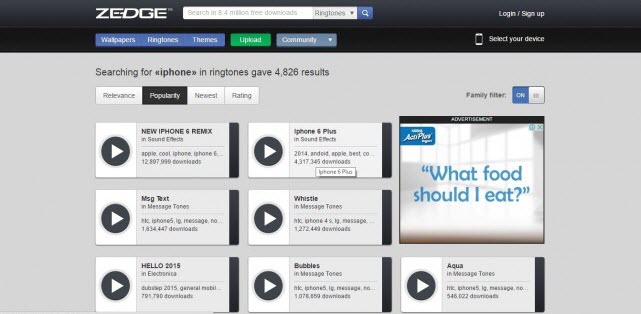
If you’re searching for a website with a broad spectrum of contents such as ringtones, wallpapers, themes, etc. then consider Zedge.net. You will find the ringtone tab at the top bar of the window, and you can search for a song you love under a specific category such as rock, classic, country, etc. It’s a good website to get good tones for your iPhone 6/6S/…/XS Max.


2
Mob.org

Mob.org is also a great website for getting good and recent tones without paying a dime. The best feature of this ringtone website is that you can easily search for your favorite tones under genres or artists. You can also get the song conveniently by clicking the download tab or scanning the QR code. Games, themes, and apps are also available on the website.


3
Mobilesringtone.com

Another free iOS 13 ringtone download website that meets the rating of the above two websites is Mobilesringtones.com. This site gives you the thousands of ringtones to select from, and you can play the songs before downloading them. You can also choose the format to download the tone, and save it directly on your iPhone if you’re using the app.


4
Freetone.org

This website allows you to listen and download popular songs to your laptop, and if you like the song, you can share them to your friends on Facebook and Twitter, but to directly download the song on your iPhone is not supported yet.


5
Mobcup.net

When you’re kin on the quality of sound, then mobcup.net should be your choice. They offer their songs on M4R formats but you can download songs on MP3 formats too. You can sort songs based on categories for easier selection. However, you can’t get the song directly to your iPhone.


How to Transfer Free Ringtones to Your iOS 13 Devices

Sponsor ads:

Gihosoft RePicvid Free Photo Recovery Software provides a free photo recovery software for windows to help users recover the deleted or lost photo for free.

If you lost data after you updated to a new iPhone, you can always use Gihosoft iPhone Data Recovery to get the data back from the old iPhone or backup.You may also like: iphonerecovery.com

Thursday, 25 July 2019

Unc0ver Update Adds Support to Jailbreak iOS 12.3 but There’s a Catch

The @Pwn20wnd team is out with another update for Unc0ver jailbreak that aims to fix some of the reliability issues while jailbreaking A7-A7X devices. The update also switches to a newer version of the SockPort exploit that improves the reliability of the overall jailbreaking process to around 95%.
The most notable improvement with this update is that it also allows one to jailbreak iOS 12.3. The catch, however, is that it is only limited to iOS 12.3 beta 1 and so far, the exploit has only been reported working successfully on the iPhone 5s. An update to Chimera jailbreak earlier this week also added support for jailbreaking certain iOS 12.3 beta builds.
Below is the full change-log of the update:
  • Fix the sandbox swap error when using the exploits that are not SockPuppet
  • Add the SockPort 1.5 exploit by @jakeajames for A7-A9X devices (Reliability: ~95% from extensive real-world testing)
  • Disable the SockPuppet exploit on A7-A7X due to reliability issues
  • Add iOS 12.3~b1 support to the jailbreak (Verified working on iPhone 5s)
  • Fix a theoretical reliability bug with SockPuppet
The last update for Unc0ver jailbreak introduced some major speed improvements and also added support for 4K devices like the iPhone 6 and iPhone 6 Plus.
Also read:snapchat on mac
You can update to the latest release of Unc0ver jailbreak by updating the app through Impactor or Reprovision and then re-jailbreaking your device. Make sure to check out the list of the best jailbreak tweaks and Cydia sources to have the best jailbreaking experience possible.Also Read:best dialer app for android


Sunday, 21 July 2019

Top Desktop Recording Software Free & Paid in 2019


1. Screenpresso Desktop Screen Recorder

Screenpresso is extremely easy to use video recorder available for free. It allows you to record your computer no matter which version of Windows you are using. Not only that but you can even use it to share your screen recording videos on various platforms like YouTube and Facebook. But the best part about Screenpresso has to be its user interface as almost anyone can use it without any issues.


2. Icecream Screen Recorder

Icecream Screen Recorder is an app which is available on almost all platforms out there. It offers both free as well as a paid PRO version. You can use it to record your device's screen along with audio from your microphone or webcam. Apart from that, you will also find various useful features in this app. These can be useful for many users who want flexibility while recording their screens.


3. Ezvid Video Maker

Ezvid is a video editor for Windows which also acts as a screen recorder. This means that you can use this single app for both recordings as well as for editing them. Not only that but Ezvid is available on various versions of Windows which means that you can use it on almost any computer. It is perfect for a YouTuber who wants to edit their video once they have finished recording their screen.


4. ActivePresenter

As the name suggests, ActivePresenter is the perfect software for recording your screen to make presentations. Just like Ezvid, you can use this software for both recordings as well as editing your screen. It is perfect if you want to create eLearning videos on your computer. Not only that but it even exports high-quality videos which are perfect for giving lectures. Apart from that, since it is made for creating eLectures, you can easily use your microphone to record audio along with the desktop screen.


5. Free Screen Video Recorder

If you are looking for a free and easy to use screen recorder for your computer, then DVDVideoSoft's Free Screen Video Recorder is a great option. You can easily download and install it on your device from their website and start using it right away. It even provides you with various useful features for screen recording. Not only that but if you want to use any of these features, you can do so quite easily as you will find a simple user interface in this app. It even allows you to easily select a specific area of your screen that you want to record.


6. CamStudio

ActivePresenter is one of the oldest and open source screen recording software available out there. It even allows its users to stream their screen on services like YouTube, Facebook, Twitch, etc. Due to this, you can have this single software installed on your computer and it can serve all of your content creation needs and requirements.


7. SmartPixel

SmartPixel is one of the oldest screen video recorders available on the internet. These days, this app is referred to as GoPlay Screen video recorder and editor. This means that you can use single software for both recording your computer's screen as well as for editing the footage. Apart from that, there are various other features in this app.


8. Screencast-O-Matic

Screencast-o-matic is a highly popular and widely used screen recorder app which is available across various platforms. Due to this, almost anyone can start using this app for recording their screen and desktop irrespective of the operating system they are using.


9. iSpring Free Cam

iSpring Free Cam combines your screen recording and your webcam footage out of the box. Because of this, it is another great option if you want to create an eLecture course on your computer. Apart from recording the video, you can even place video calls with this software while showing your computer screen.read more:usb bootable software

read more:downloadming alternatives


10. Camtasia

TechSmith Camtasia is another great choice for content creators who are looking for a screen video recorder. It offers various useful features which will be appreciated by all kind of users. For example, not only you can record your computer screen for editing later on, but you can even video call others along with your screen.


11. Free Cam

Free Cam is another great option if you are looking for a free to use screen recorder for your computer. It allows you to easily record and share your desktop screen output. Not only that but you can even choose between different audio sources in this app. But the best part about this app has to be its user interface which allows even basic users to get used to this app without any issues.


12. ShareX

As the name suggests, ShareX is more than a desktop recording software. Apart from recording your screen, you can even use this software for sharing your files. And you can share any file stored on your computer which can also include the video recordings that you made using this software. This software is also available various platforms which means that you can easily download and install it on all of your devices. You also get various other features that are equally useful. You can use this app for capturing screenshots, uploading files to cloud storage like Google Drive or Dropbox, automated tasks, hotkey macros, and much more.Also read:cricfree alternatives

Also read:hacking apps


13. MadCap Mimic

While there are various screen recording software available out there which also allow you to edit your screen recording videos, MadCap Mimic takes it to a whole another level. This screen recording software has an inbuilt video editing software which is almost as powerful as various other standby editing software available on computers like Sony Vegas, Adobe Premiere Pro, etc. As a result, you can easily create tutorials, eLectures, movies, and much more using this single tool installed on your computer. Unfortunately, due to all of the features that it provides, MadCap Mimic is not free to download and install on your computer.


14. FlashBack

FlashBack is a desktop video recording software which is quite easy to use even though a large number of advanced features. You can find various things in this app like being able to add various sources. These sources can range from a webcam to your microphones, etc. Apart from that, you can even record the video feed from all the monitors present on your computer. This can be quite useful if you are creating eLectures with multiple programs open at once. Apart from that, you can also share your recorded videos to services like YouTube without any issues.


15. OBS Studio

OBS stands for Open Broadcast Software which means that you can use this single tool for both recording your screen video output as well as for streaming. It has a large number of advanced features all of which are completely free since this is an open-source tool. As a result, it is the most popular choice among content creators and streamers who use services like YouTube and Twitch. You can create professional scenes with multiple sources just like any broadcasting software used by the television industry for TV channels.


16. Apowersoft Free Online Screen Recorder

Apowersoft Free Online Screen Recorder is definitely the most unique screen recorder mentioned in this article. You can use this tool for recording your device's screen without even downloading and installing it. Instead, as the name suggests, it is able to do so straight from your browser. It has one of the best Screen Recorder APIs available out there which allows it to simply record your computer's screen right from the browser. But if you are having issues while recording your screen from the browser, you can even download and install its optional desktop app.


17. Debut Video Capture

Debut Video Capture is another great choice for those who want to create eLectures on their computers. It allows you to easily record whatever is on your screen and edit it afterwards. For example, you can easily add your webcam overlay while recording your screen using this software. Not only that but you can even add multiple subtitle files of different languages in your screen recording. This will allow you to share your eLectures among people of different nations without any issues. Apart from that, you will also find multiple resolutions and frame-rate options which are highly useful when you are sharing your video recordings over the internet.


Final Words We hope that you have found this article useful and found a great software for desktop recording. You can easily learn more about these software and how they work on your computer in this article. We have also provided various software which you can easily download and install on your computer to start recording your computer screen. Not only that but you will also find the major differences between all of these software which can help you in choosing the best one for you. In case you liked this article, then make sure to share it on social media. If you have any doubts regarding any of the solutions, feel free to ask any queries in the comments section below.

Thursday, 23 May 2019

How MMA Fighter Helen Peralta Uses Her iPhone


In every issue of iPhone Life magazine, we feature the iPhone Home screens of two or three people from different walks of life so our readers can see how they use their iPhone apps to meet a variety of needs. In our Summer 2019 issue, we featured mixed martial arts (MMA) fighter Helen Peralta, who uses her iPhone for training, planning, publicity, and recreation. If you have a story and apps you'd like to share, email me and we may feature you in an upcoming issue of the magazine!

Related: Best Health & Fitness Accessories for Your iPhone

Helen Peralta

Helen is a professional mixed martial arts (MMA) fighter signed to Invicta Fighting Championships in the strawweight division. She’s also a professional pastry chef and culinary arts teacher. Find Helen on Instagram and Facebook.


UFC (Free, $9.99/month fight pass)

I use this app for studying martial arts, to keep track of my favorite fighters, and to study the competition.
Trivia Crack (Free)

While most people check their social media whenever they are waiting in line or have a spare five minutes, I play this game. It is a positive distraction; my favorite part is that it allows players to create questions and rate those written by other players.
Netflix (Starts at $7.99/month)

This is my go-to app for entertainment when I travel.
Interval Timer – HIIT Workouts (Free)

This app is great for keeping track of training rounds.
My Calendar – Period Tracker (Free)

This app helps me track my period.
Cameo - Video Editor and Movie Maker (Free)

I use this for editing my videos before posting them on social networks.
Learn World Geography (Free)

I like to keep learning, and this app helps me not only memorize map locations and capitols, but also flags and currencies.

Sponsor ads:

Gihosoft RePicvid Free Photo Recovery Software provides a free photo recovery software for windows to help users recover the deleted or lost photo for free.

If you lost data after you updated to a new iPhone, you can always use Gihosoft iPhone Data Recovery to get the data back from the old iPhone or backup.You may also like: iphonerecovery.com

If you use android phones, please choose Gihosoft Android Data Recovery.With Gihosoft Android Data Recovery, no longer afraid of data loss!

iPhone Manager:Get the ultimate Gihosoft iPhone Manager. Free download for PC/Mac.

Monday, 29 April 2019

Recover iPhone Backup Password with Keychain on Mac


Recover iPhone Backup Password with Keychain on Mac

This process is only possible if you’ve set a password when backing up iPhone and choose to remember the password as the picture shows below, your backup password can be stored in your Mac OS KeyChain. Here’s how to look for it when you lost iPhone backup password.


On you Mac, go to Finder>Applications>Utilities>Keychain Access.


TClick on All Items on the left side. Then type "iPhone Backup" in the search field, and then double-click it from the result list. If your iPhone backup is not listed here, that means your password is not stored in KeyChain.


Click “Show Password” checkbox and enter your KeyChain password, which is your Mac user password by default, and then click allow. You’ll see your iPhone Backup password showing there.


Alternatively Use an iCloud Backup

If you lose iPhone backup password on iTunes and you are tired of the hassle of iTunes, then you can choose to use iCloud backup instead. Please note that iCloud only provides 5GB free storage, you will pay extra fees monthly if you exceed it.


Make sure your iPhone is connected with WiFi.


Go to Settings > [Your Name] > iCloud > iCloud Backup.


Click on “Backup Now”.


Backing up on iCloud is just that easy.


Final Words

Sponsor ads:

Gihosoft RePicvid Free Photo Recovery Software provides a free photo recovery software for windows to help users recover the deleted or lost photo for free.
If you lost data after you updated to a new iPhone, you can always use Gihosoft iPhone Data Recovery to get the data back from the old iPhone or backup.You may also like: iphonerecovery.com
If you use android phones, please choose Gihosoft Android Data Recovery.With Gihosoft Android Data Recovery, no longer afraid of data loss!

iPhone X Heating up While Using? Top 3 Tips & Tricks

There are some users who have reported the iPhone X heating up while in use. The main consequence of this problem is that the device's b...